
- Item on a white A4 sheet, shot straight from above: about 1 mm accuracy.
- The printed marker sheet («Mat A4») is even more accurate, even at an angle.
- The outline is found automatically; 1 mm clearance is added.
- The outline can be saved as DXF — free.
No drawings — no problem. Put the item on an ordinary white A4 sheet, take a phone photo, and the constructor finds the outline in millimetres.
1How to take the photo
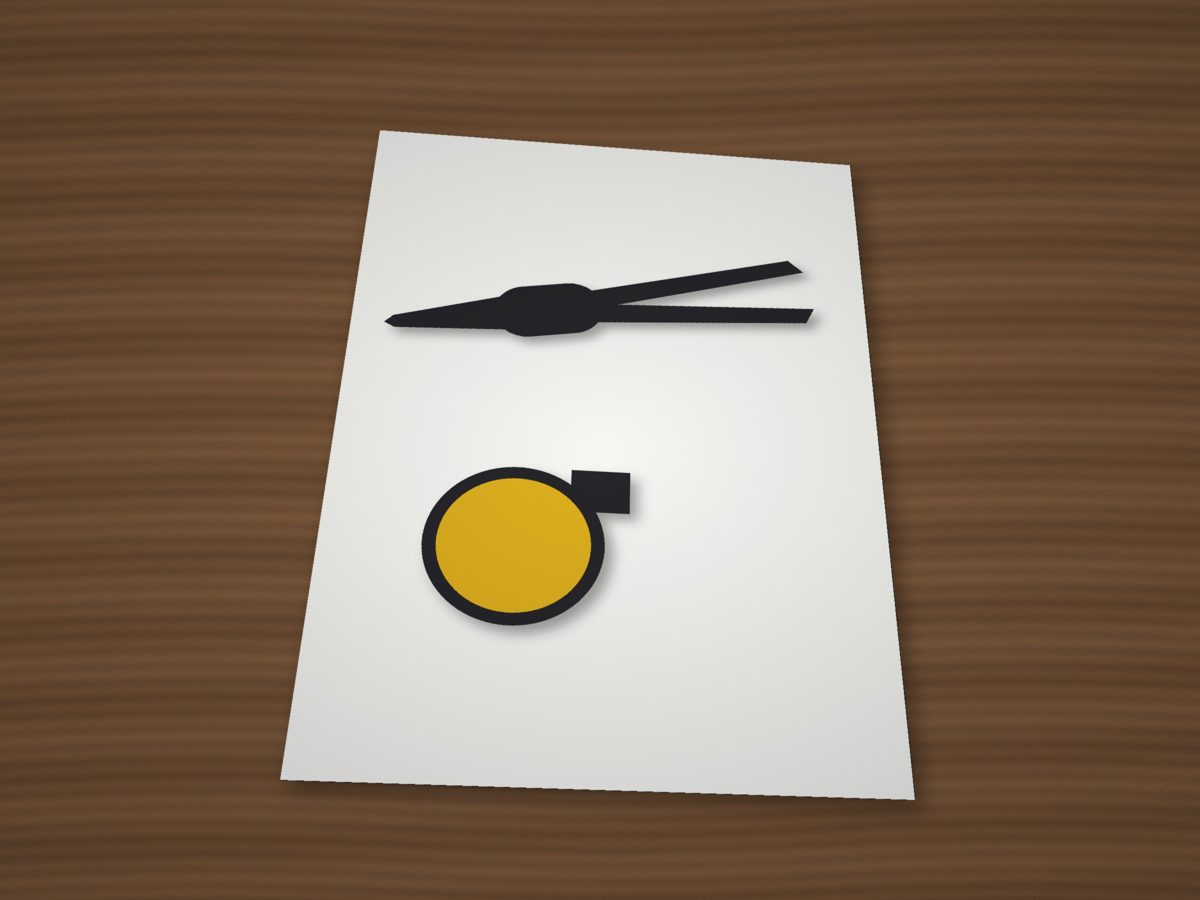
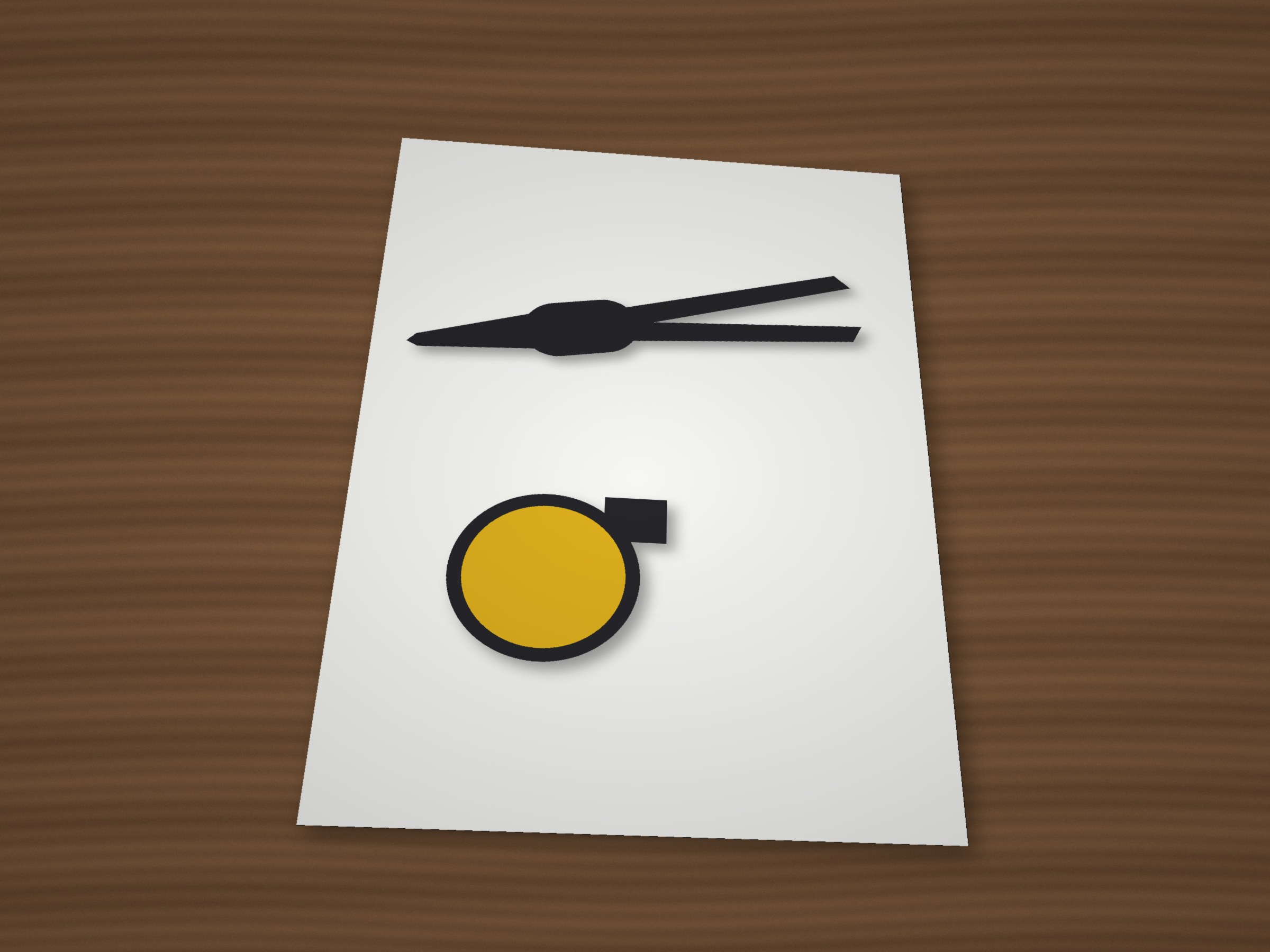
- Item on a white A4 sheet (A3 for large items), the whole sheet in the frame, nothing over the sheet edge.
- Shoot straight from above, from about a metre with 2× zoom — less distortion.
- Soft light, no hard shadows; the sheet on a dark table.
2«Photo» tool → load the picture
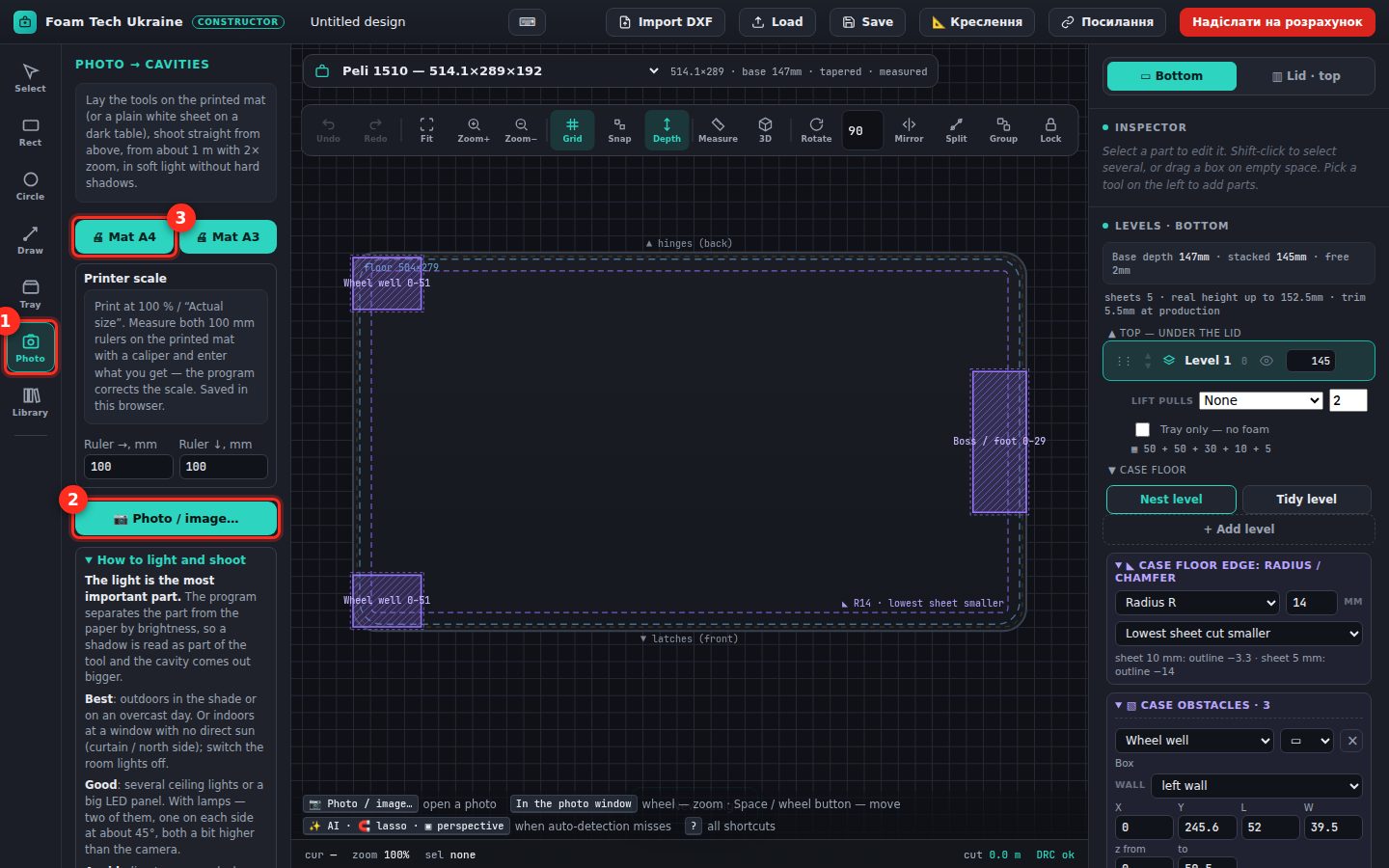
Pick the case and «New design», then the «Photo» tool on the left (1) and «Photo / image…» (2). Printable marker sheets (3) and lighting tips are here too.
3Say how the photo was taken
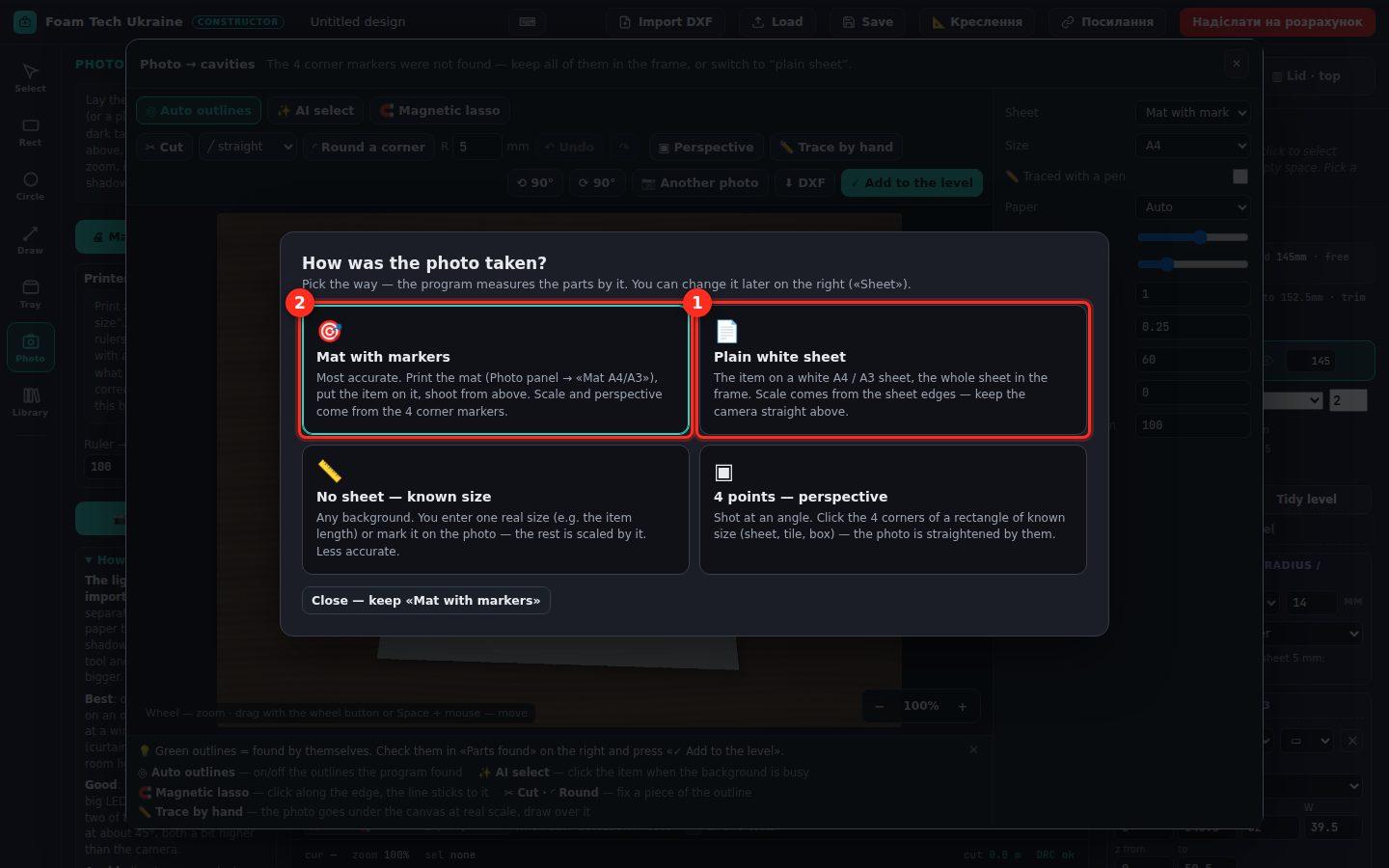
For a plain sheet — «Plain white sheet» (1): the scale comes from the sheet edges. Printed marker sheet — (2). Photo at an angle — «4 points — perspective»: click the 4 sheet corners and the photo is straightened.
4Outlines found automatically
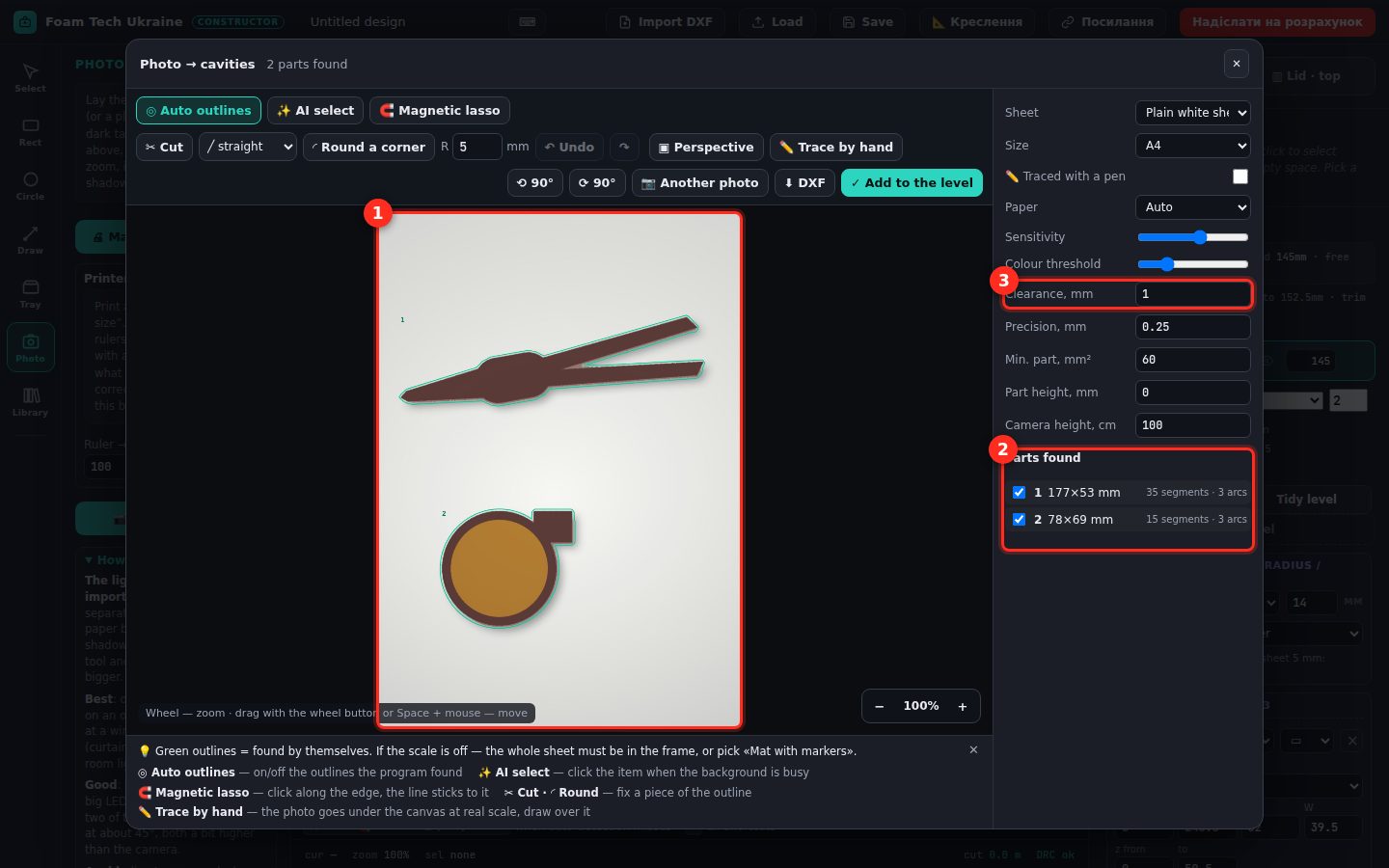
Green lines (1) are the outlines found; on the right the «Parts found» list with sizes (2) — untick what you don’t need. «Clearance, mm» (3) — how much to add around the item (1 mm by default).
5Fixing the outline
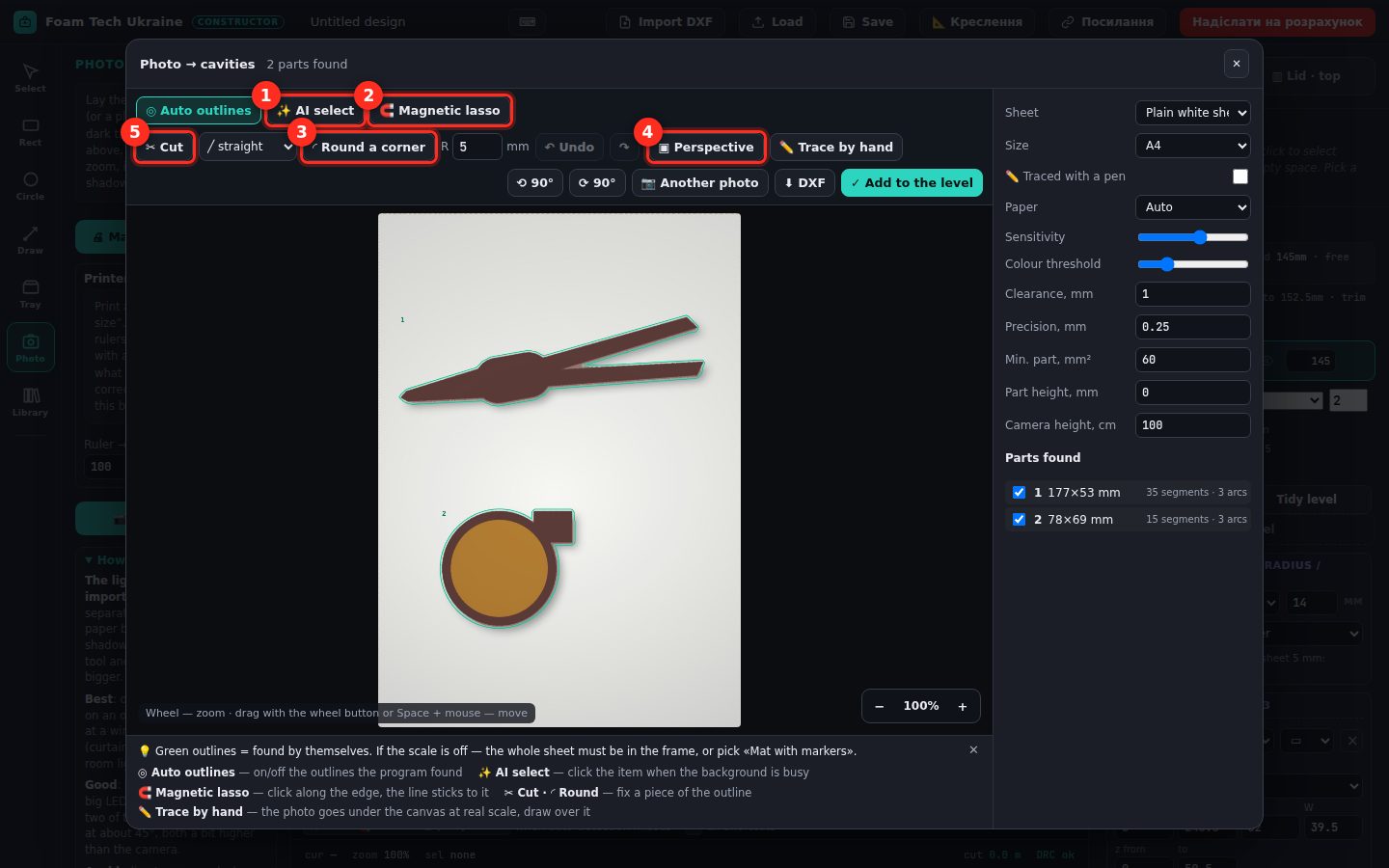
- AI select (1) — click the item on a busy background;
- Magnetic lasso (2) — click around it, the line snaps to the edge;
- Round a corner (3);
- Perspective (4) — straighten an angled photo by the 4 sheet corners;
- Cut (5) — replace part of the outline with a line or an arc.
6«Add to the level» — then as with DXF
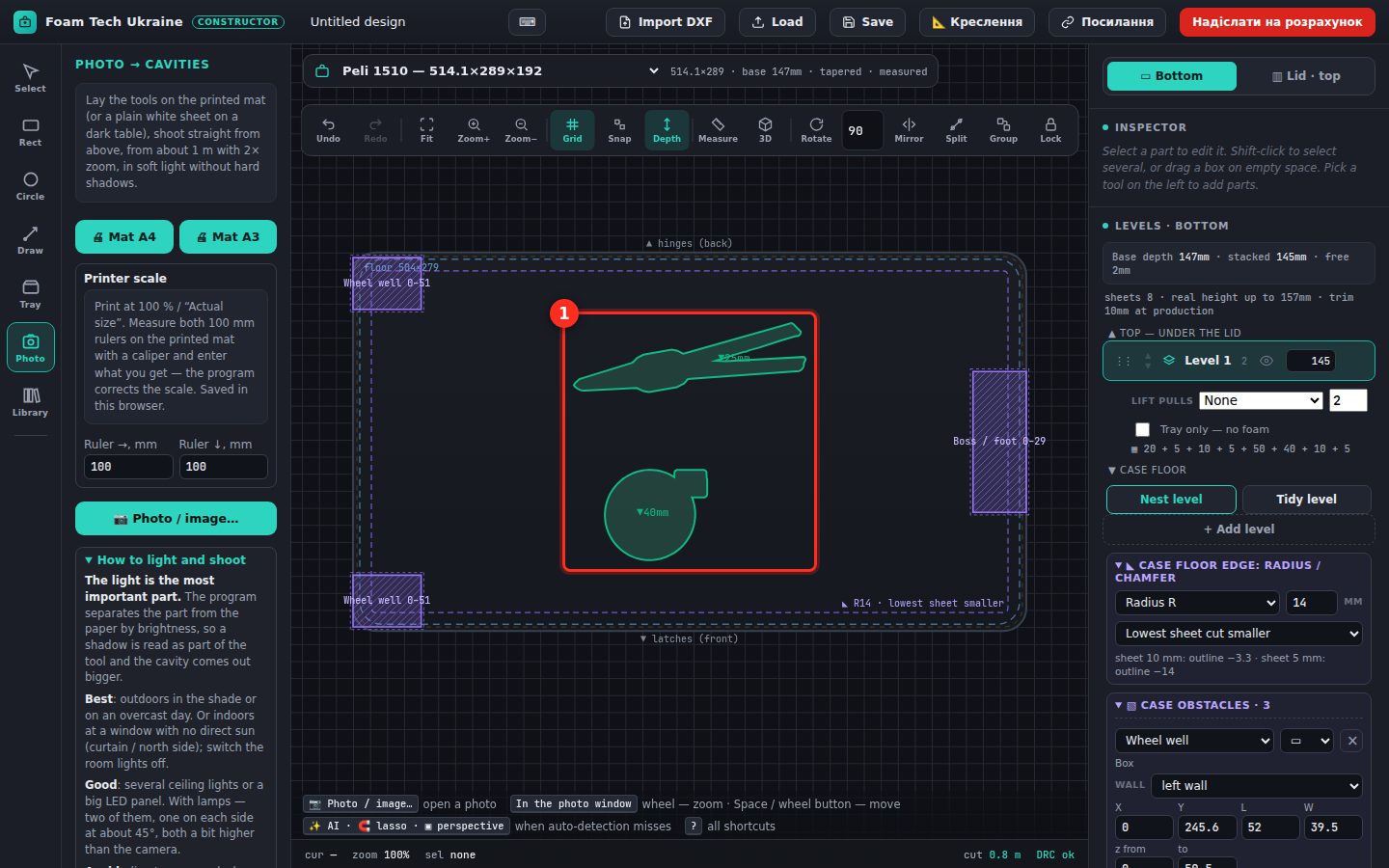
«✓ Add to the level» turns the outlines into cavities in the case (1). Then the same steps as for DXF: lay out, set item heights, finger pulls, check and send.
💡 The outline can be saved as DXF too (the «DXF» button in the Photo window).